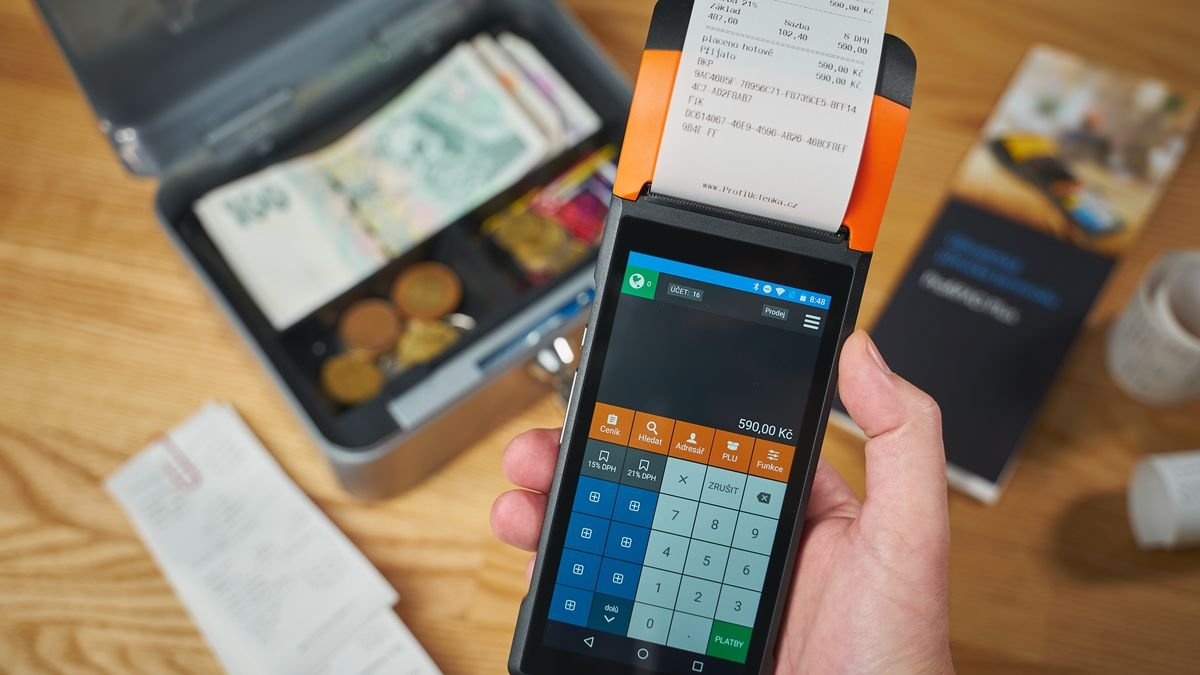
A slow or frequently dropping network is a classic complaint in cafés, shops, and guesthouses. Guests cannot get online, the POS app lags, and the printer disconnects. Most of these problems can be reduced without replacing all your equipment, just by setting things up properly.
1. Put the router in the right place
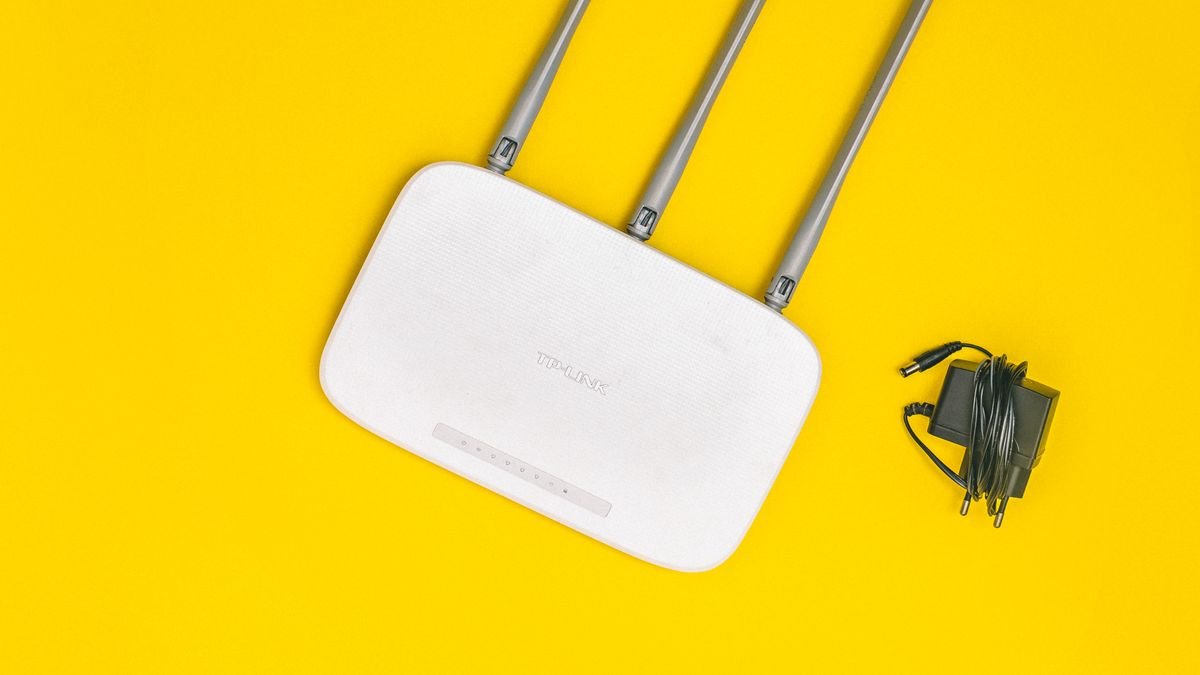
Wi-Fi signal is weakened by thick walls, metal cabinets, aquariums, and large mirrors. Place the router or access point in the open, from chest height up to the ceiling, and as close as possible to the busiest area. Avoid keeping it in a drawer or behind a TV.
2. Use cables for fixed devices
Cashier computers, network printers, and other key devices should use LAN cables. Wired connections are more stable and are not affected when many guests join the Wi-Fi. Keep Wi-Fi for mobile devices such as phones and tablets.
3. Separate the guest network from the business network
Create two networks: one for operations (cashier, printers, CCTV, office computers) and one for guests. This keeps business data safe and prevents guest devices from reaching your printers or computers. Most modern routers offer a guest network or VLAN feature. Give each network a different password.
4. Limit speed per device
One guest downloading a movie can use up your whole internet capacity. Set a per-device speed limit or use a priority feature (QoS) so cashier transactions and online orders stay smooth.
5. Choose the right channel and frequency band
- The 2.4 GHz band reaches farther but is more crowded and slower.
- The 5 GHz band is faster with less interference, but has a shorter range.
For busy areas, prefer 5 GHz and keep 2.4 GHz for older devices. If there are many neighboring networks, try changing the channel manually, for example 1, 6, or 11 on 2.4 GHz, because those three do not overlap.
6. Add access points, not just a new router
In a large or multi-story building, one router is rarely enough. Install several access points connected by cable to the same network, using the same network name (SSID) so devices roam smoothly. Cheap wireless extenders usually cut speed by about half and are not the best solution for a business.
7. Update devices and secure the settings
- Change the router's default admin password.
- Install firmware updates regularly.
- Use WPA2 or WPA3 encryption; do not leave the network open without separation.
- Turn off unused features, for example admin access from the internet.
8. Monitor and document
Note the device types, locations, and admin password in a safe place. When complaints come in, test speed at several spots during busy hours, not only when it is quiet. If speed is good near the router but drops sharply in a corner, the problem is coverage. If it is poor everywhere, check your internet plan or provider.
When to call a technician
If the network keeps dropping even after the basics are fixed, or you manage many rooms and areas, a planned setup will be cheaper in the long run than replacing devices without a diagnosis.